
Time to get nitty gritty today, folks! I’ve noticed different tutorials and ideas popping up about ways to use surfaces to give a glittery look to pages and embellishments. So I decided it’s time to really take a look at what those surfaces can do.
So, to apply a Surface, select the element you wish to apply it to (paper, embellishment, even fonts and photos if you flatten them first), then click on the Format tab and click on the Surfaces button in the center. Now you can pick the Surface you want, and use the slider bars below to adjust the scale and the amplification — basically the size of the pattern and how intense it is.
Tip: I usually hit the Preview option to view it before hitting accept. It’s easier to adjust to my liking that way, and I can still Cancel it.
Here are some examples of what the different surfaces can do. Depending on how you adjust it, there are a lot of options!
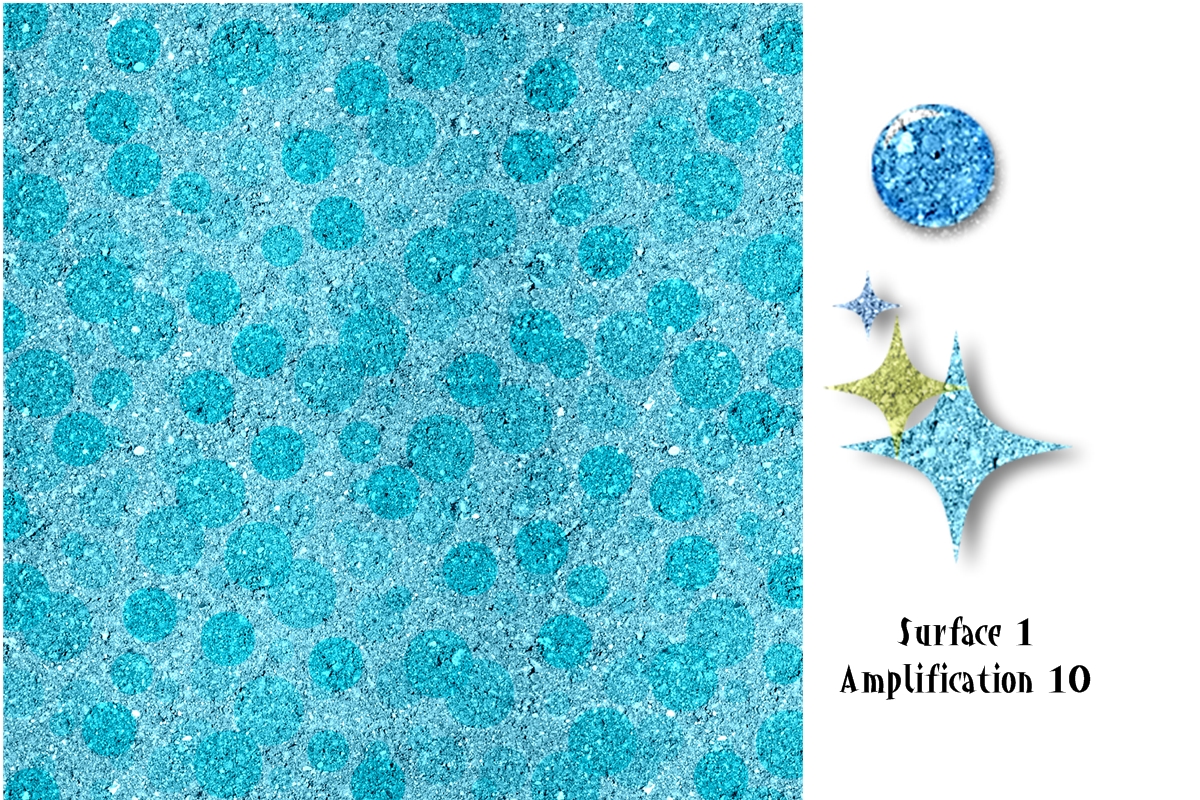

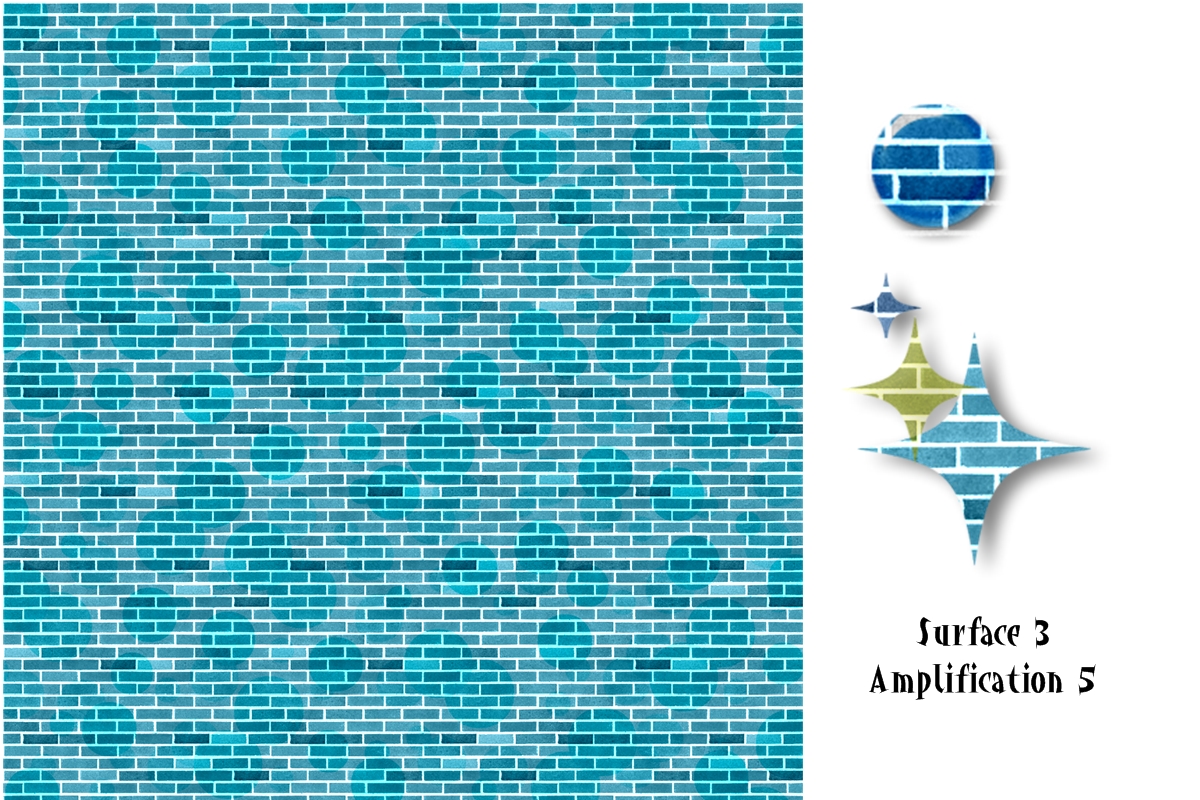

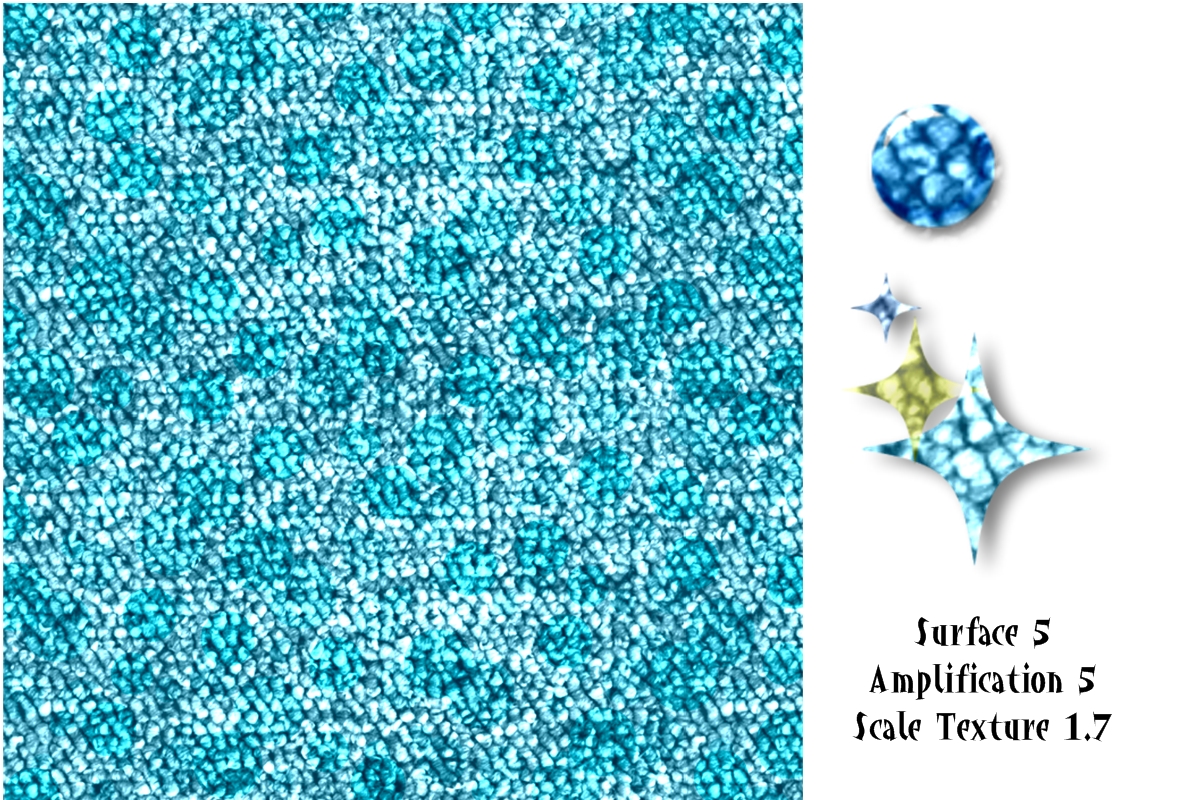

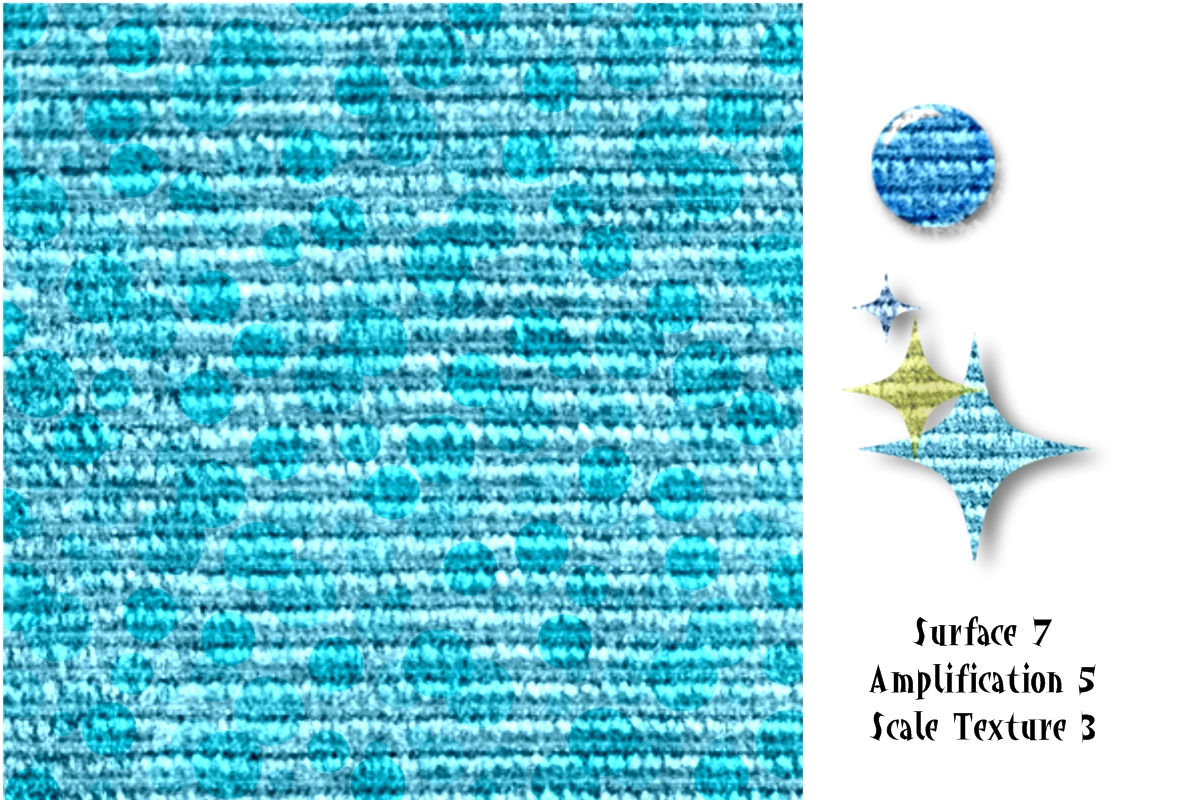
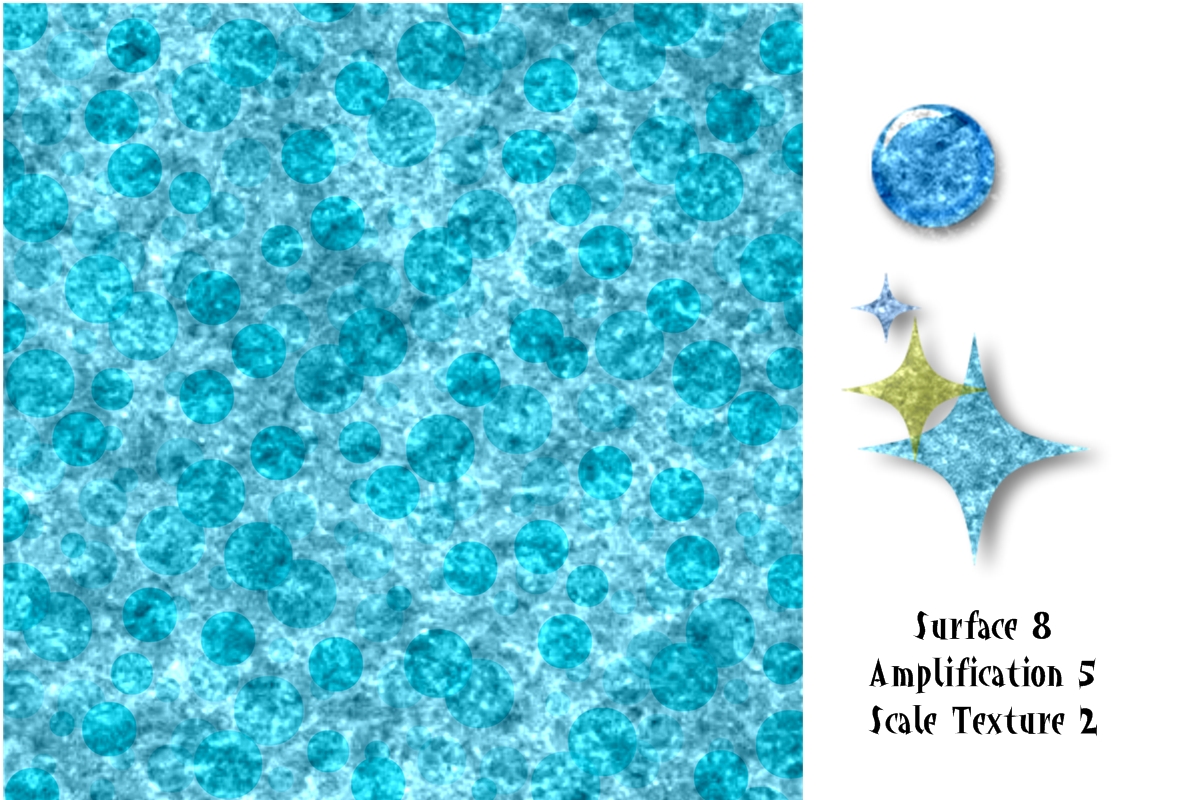

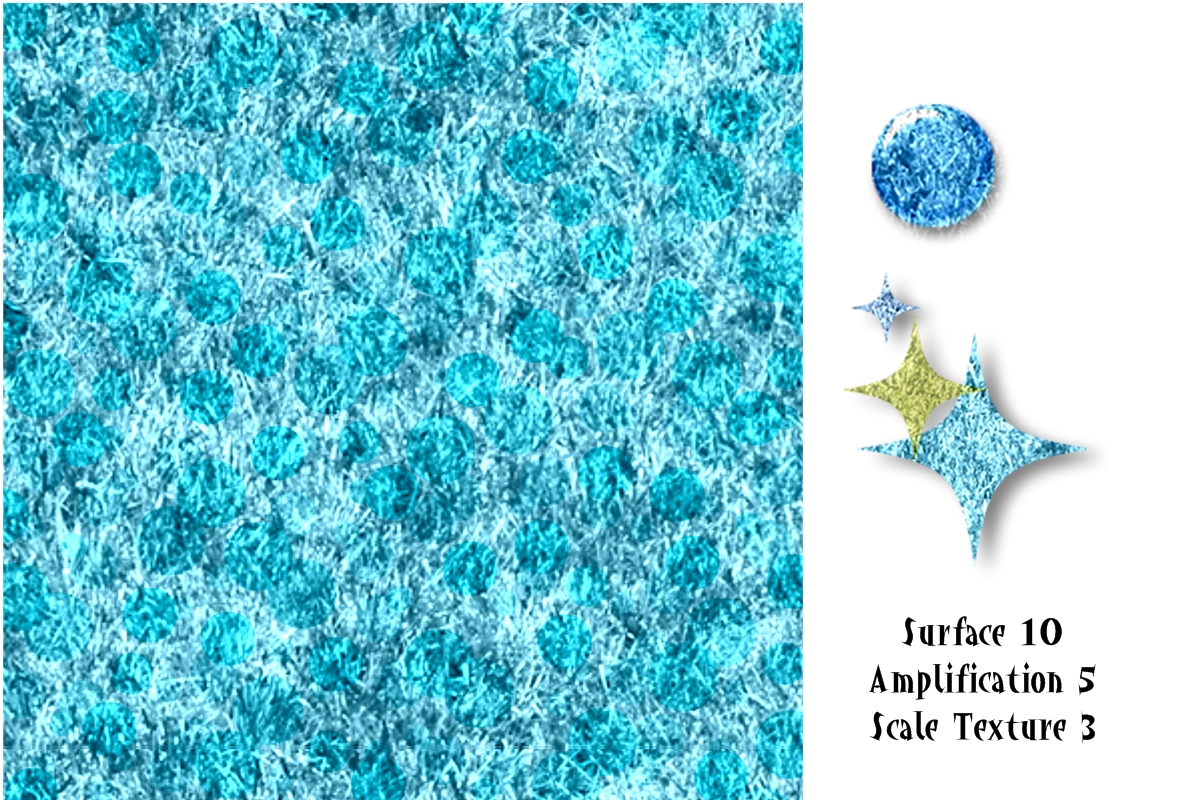
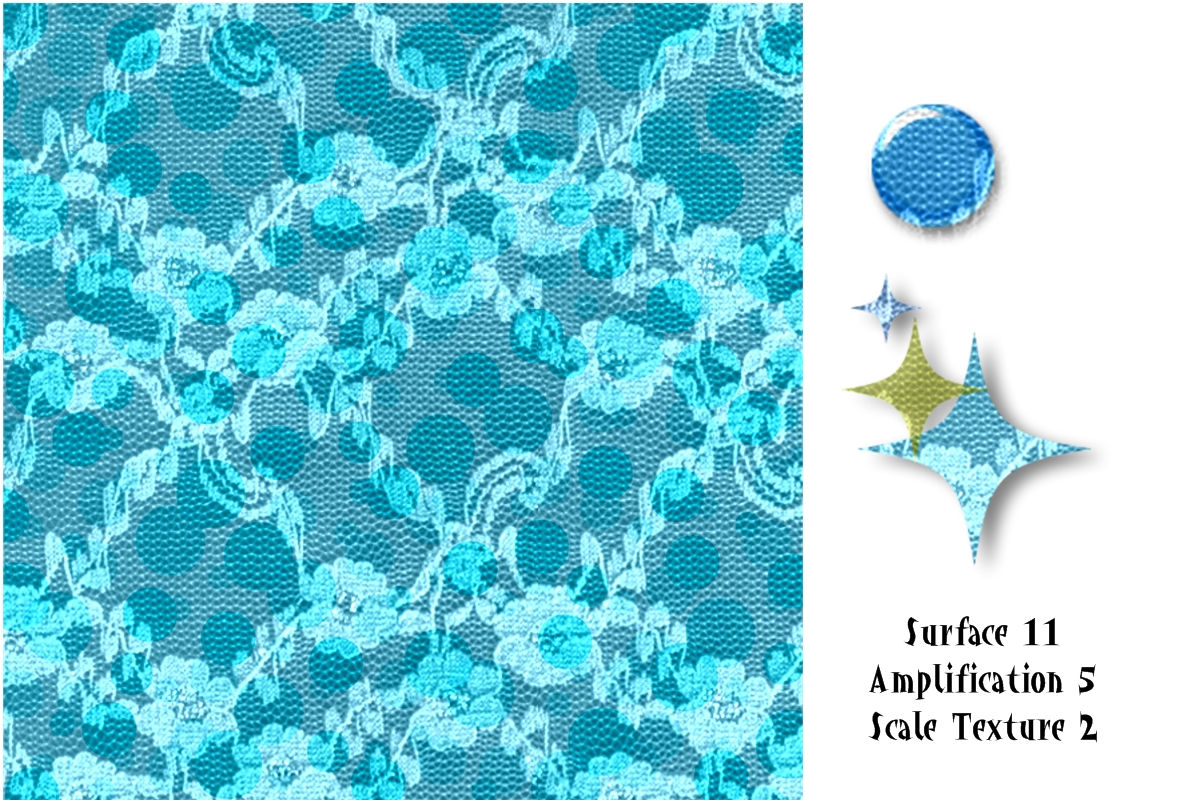
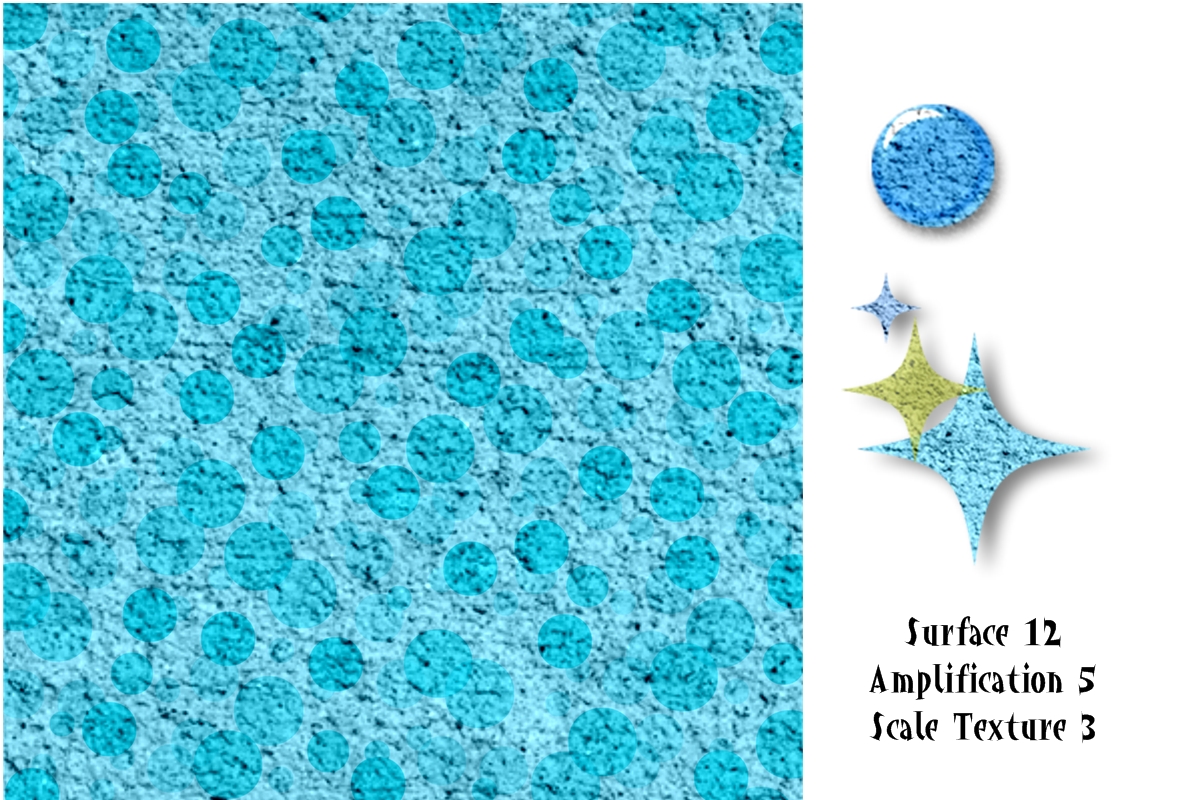
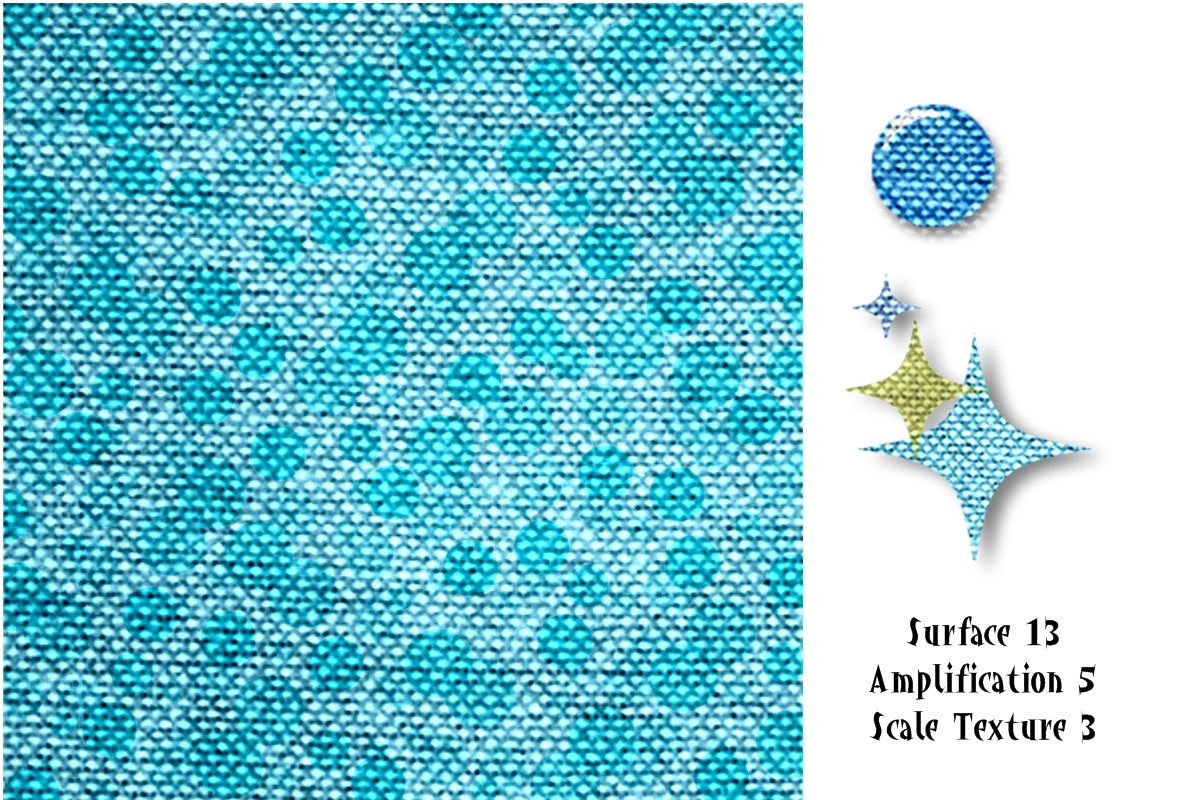
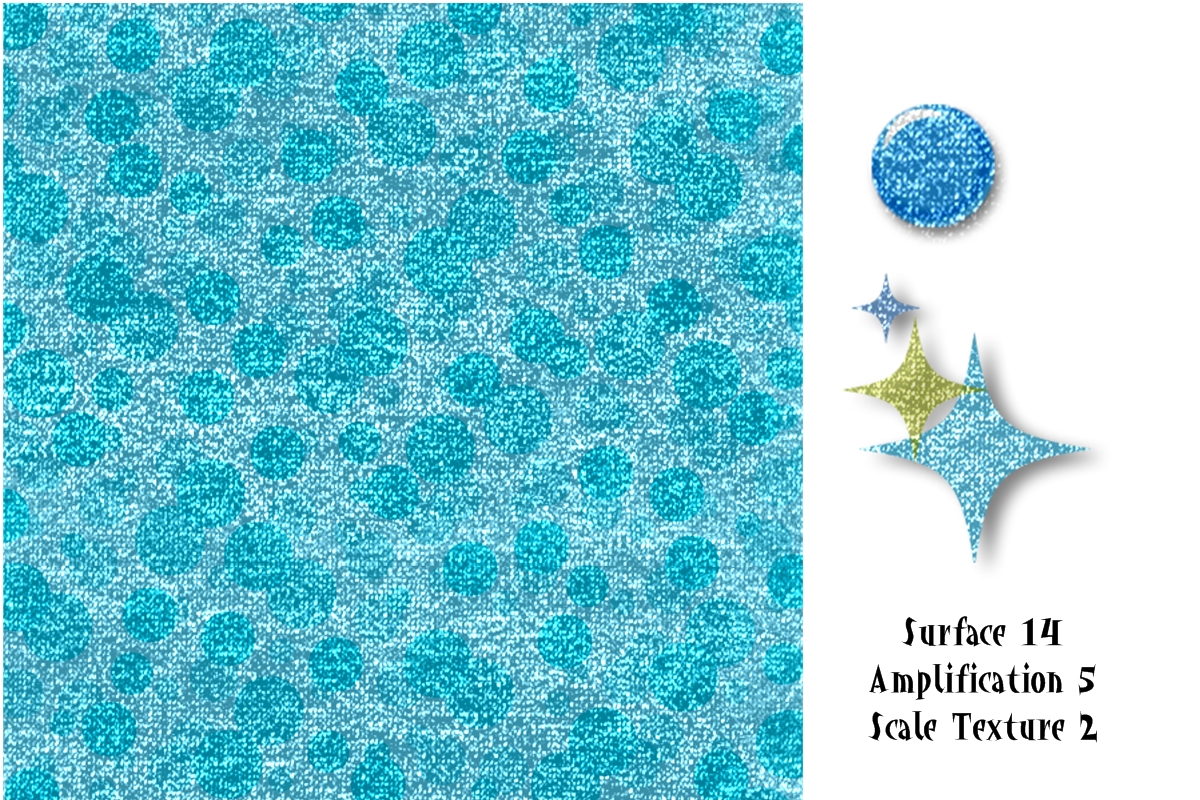
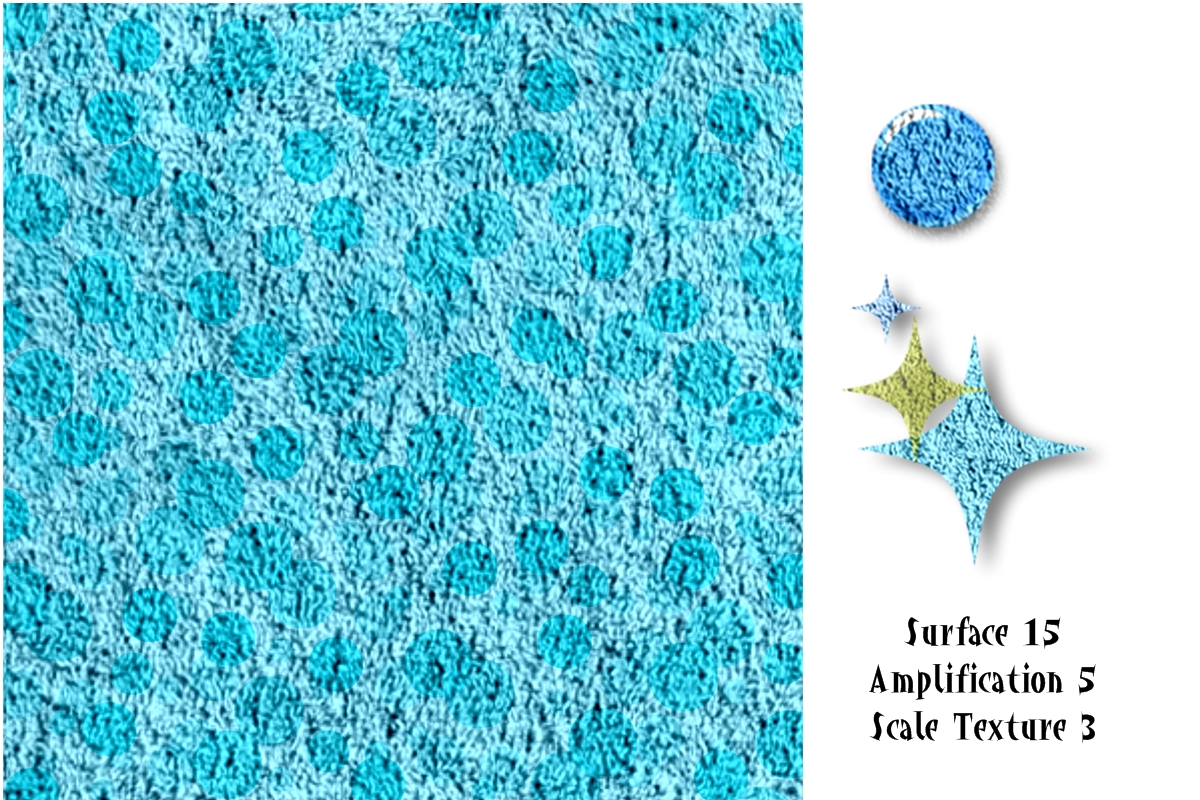
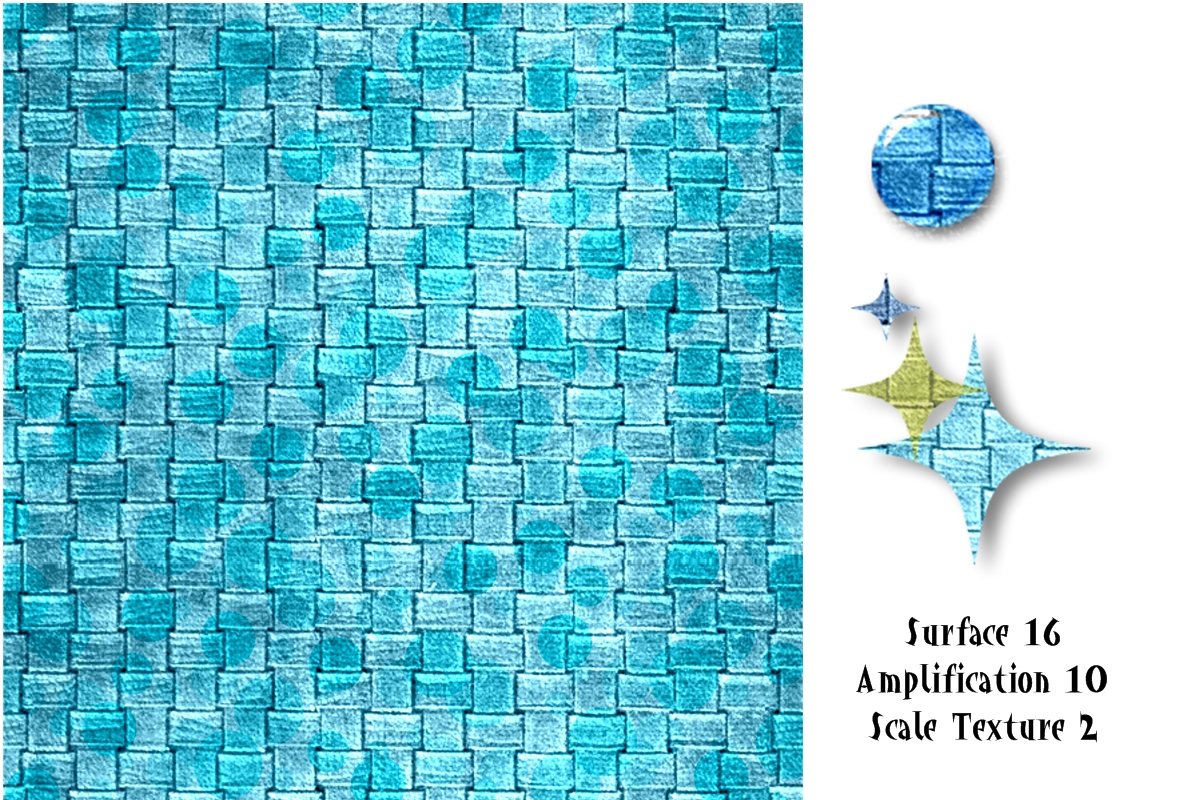

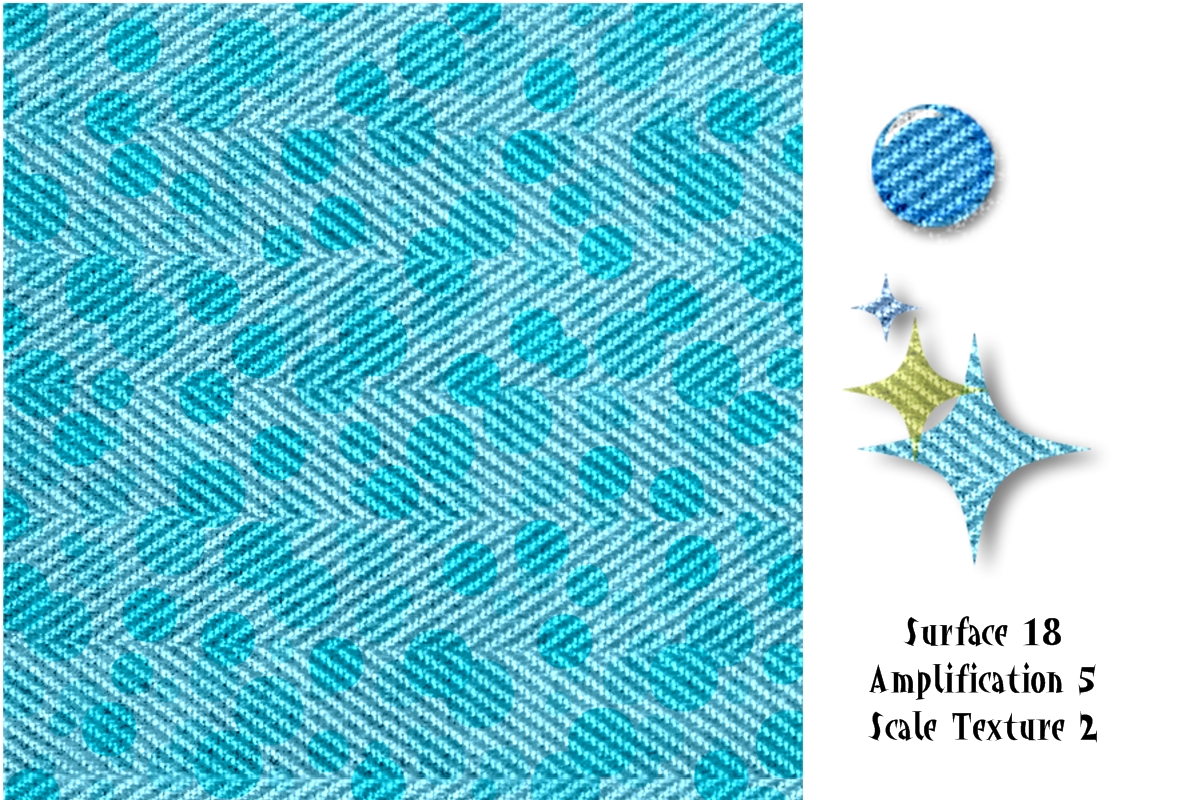
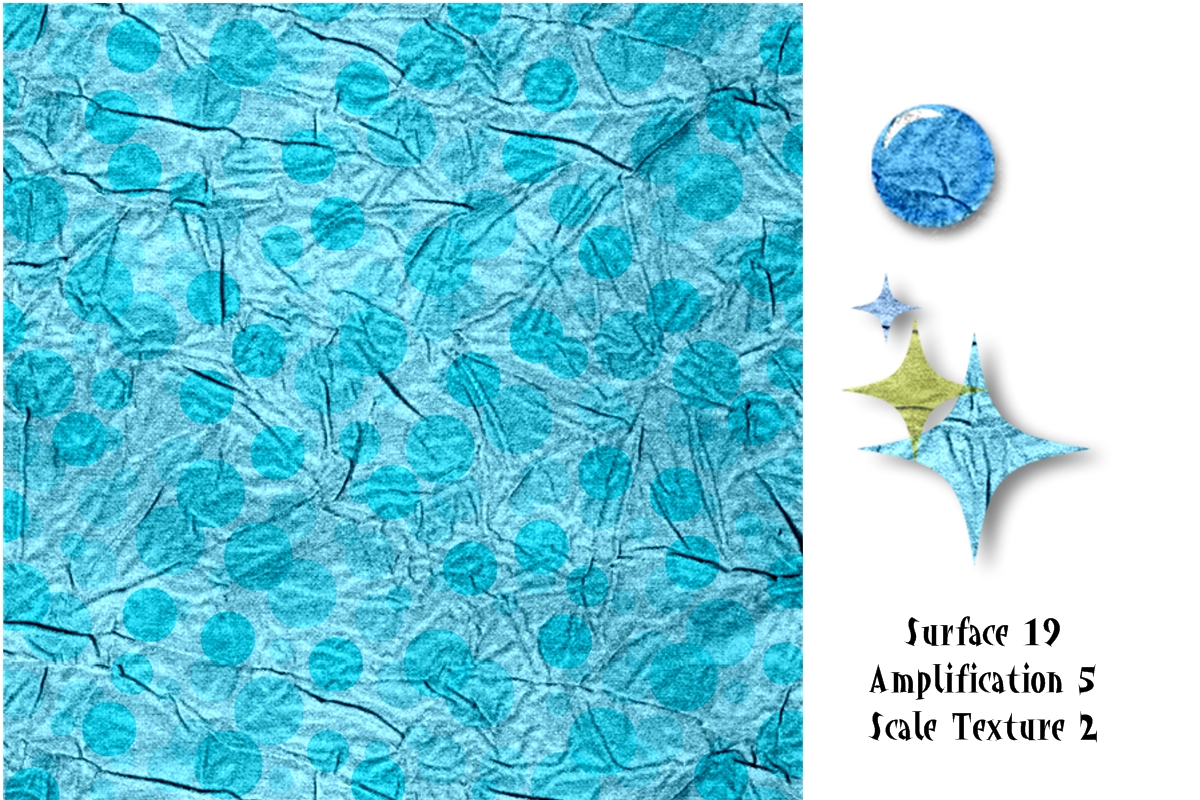
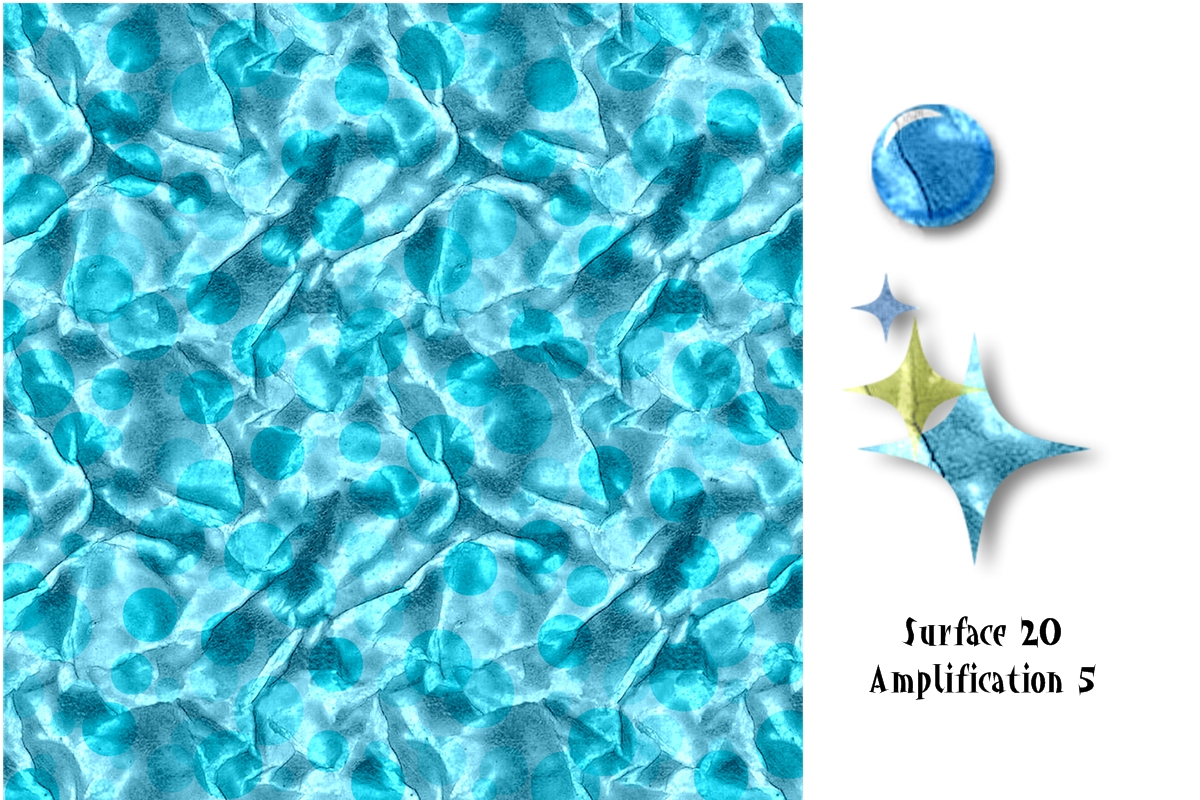
This is just the tip of the iceberg … I’d love to see what you do with some of this!